When revenue teams realize their Salesforce emails are going to spam, the first reaction is usually confusion. Salesforce may show a message as sent or even delivered, yet the prospect never sees it in the inbox that actually matters. That disconnect creates a dangerous blind spot for sales, RevOps, and CRM owners who rely on email activity to judge pipeline health.
The first thing to understand is that “Salesforce email” is not one single sending path. Some messages are sent directly by Salesforce. Others go through a connected mailbox like Gmail or Microsoft 365. Others are routed through Email Relay and leave through your company’s own mail infrastructure. Because each path creates a different mix of authentication signals and reputation inputs, the reason an email lands in spam can change depending on how it was sent.
That is why troubleshooting has to start with mechanics, not assumptions. Before you blame list quality, shared infrastructure, or email copy, you need to confirm which sending path is in play, whether SPF, DKIM, and DMARC are aligned, and whether the receiving provider is reacting to authentication, sender reputation, or weak engagement signals.
This guide walks through that process step by step. We’ll start with the gap between a successful Salesforce send and actual inbox placement, then move into sending-path diagnosis, authentication checks, reputation signals, list quality issues, and the role Email Relay can and cannot play. By the end, you’ll know what to check first, what to fix next, and how to keep the same issue from coming back.
TL;DR: When Salesforce emails land in the spam folder despite showing as "Delivered" in your CRM dashboard, revenue teams often misdiagnose the root cause by immediately blaming their email copy or IP address. This creates a dangerous blind spot; mailbox providers like Google and Microsoft evaluate the actual sending path—whether that is native Salesforce-generated alerts, a connected Gmail or Microsoft 365 mailbox, or an internal Email Relay—meaning a blanket fix will fail if your specific authentication (SPF, DKIM, DMARC) is misaligned with the route. If this mismatch persists alongside decaying list quality, your domain trust will collapse, and future campaigns will be silently filtered. To restore inbox placement, operators must stop guessing, systematically audit the exact sending path to enforce strict authentication alignment, and use platforms like Allegrow to purge the invalid contacts and hidden spam traps destroying their deliverability.
Why can Salesforce show “Delivered” while your email still lands in spam?
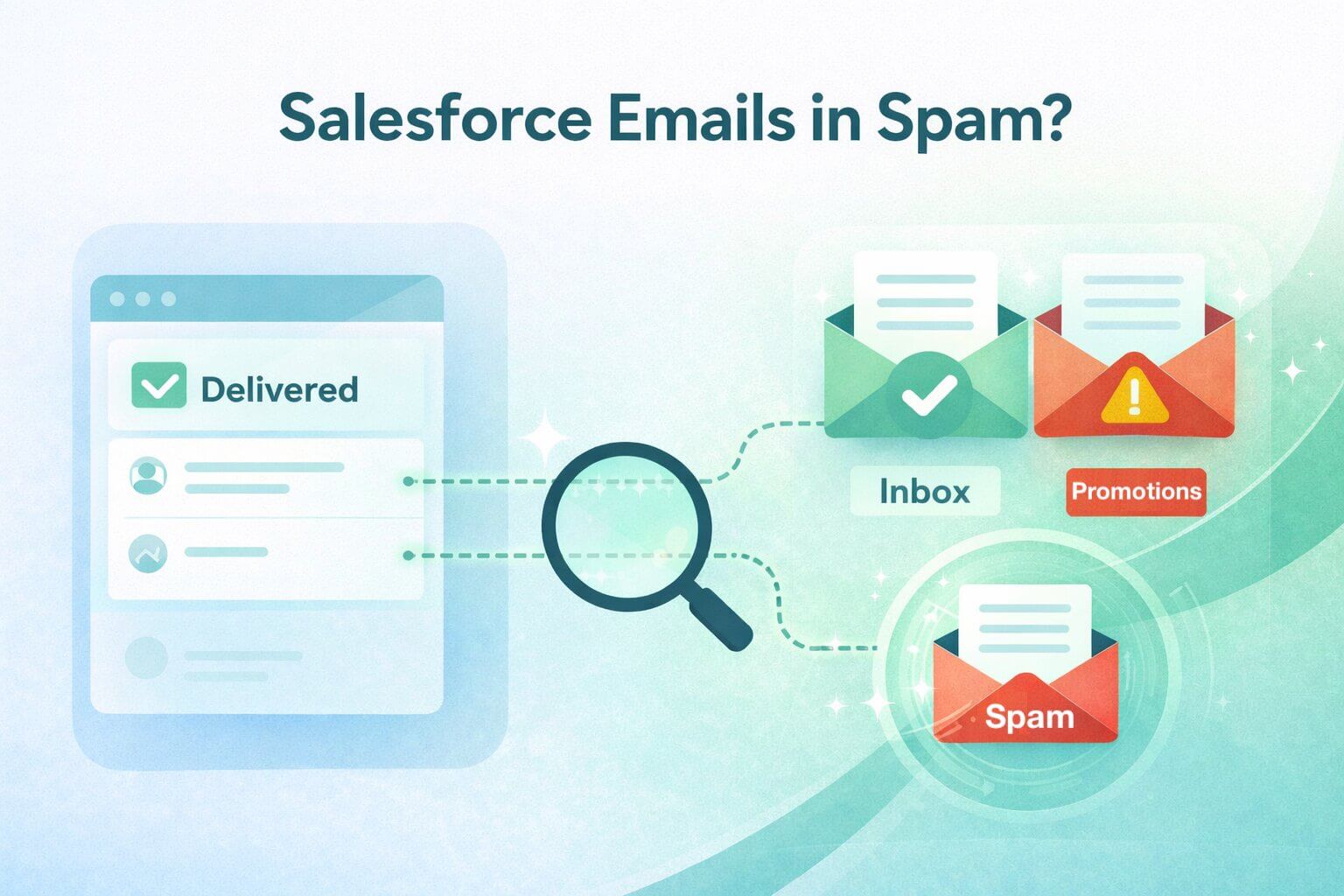
When Salesforce marks an email as sent or delivered, that usually means the platform successfully handed the message off for delivery. It does not guarantee that the email reached the recipient’s primary inbox. Mailbox providers still make their own placement decision after that handoff, and that is where many Salesforce deliverability investigations go off track.
After the message leaves Salesforce, or leaves the connected system sending on Salesforce’s behalf, providers like Gmail and Outlook evaluate the message using their own filtering systems. They look at authentication, alignment, complaint signals, sending behavior, and historical trust. If those signals are weak, the message can be accepted and still get routed to junk or another filtered location without a clear failure notice coming back into Salesforce.
That distinction matters because the right fix depends on where the failure is happening. If the issue starts inside Salesforce, the answer may be a platform setting, a routing choice, or a configuration problem. If the message is leaving correctly but failing downstream, the real issue is more likely authentication, domain trust, sender reputation, or poor audience quality. In other words, the first question should not be “Did Salesforce send it?” It should be “What did the receiving mailbox provider see when it arrived?”
Which Salesforce emails are going to spam?
Not all Salesforce emails are evaluated the same way by mailbox providers, and that is usually where troubleshooting starts to go wrong. Before you try to fix the problem, you need to identify what kind of email is actually failing. A system-generated alert, a rep’s one-to-one message, and a higher-volume list send may all originate from Salesforce in some way, but they do not necessarily follow the same delivery path or trigger the same level of filtering scrutiny.
The practical question is not just “Was this sent from Salesforce?” It is “How did this specific email leave Salesforce, and what did the receiving provider see?” Once you separate the traffic into the right bucket, the root cause becomes much easier to isolate.
Are Salesforce-generated system emails going to spam?
If the emails going to spam are workflow notifications, automated alerts, confirmations, or other Salesforce-generated messages, start by treating this as a platform-path issue first. These messages are often the clearest place to uncover authentication gaps, routing problems, or configuration choices that are affecting Salesforce-generated email as a whole.
In this scenario, your first checks should be technical. Confirm whether the affected mail is leaving Salesforce directly or through Email Relay, and then verify that the sending domain, DKIM setup, SPF logic, and broader alignment are behaving the way you expect. If these emails are failing across multiple recipients or domains, the problem is usually bigger than one user’s mailbox behavior. It is more likely tied to how Salesforce-generated mail is configured and authenticated.
Are rep emails sent from Salesforce going to spam?
If the problem is happening mainly with rep-to-prospect communication, the next step is to confirm whether those messages are being sent natively from Salesforce or through a connected mailbox such as Gmail or Microsoft 365. That distinction matters because the receiving provider may be evaluating a very different sending identity, authentication path, and reputation context depending on the setup.
This is also where the investigation becomes more user-specific. If only a small group of reps is affected, the issue may be tied to their connected sending configuration, their individual sending behavior, or the audience they are targeting. If the issue is widespread across many reps, that points more strongly to a shared authentication, routing, or domain-trust problem rather than a single user’s habits.
Are list emails or higher-volume Salesforce sends going to spam?
If the issue shows up mainly on list emails, mass emails, or other campaign-style sends, mailbox providers will usually apply more scrutiny because the traffic pattern looks broader and more promotional. That does not automatically mean Salesforce is the problem. It means volume, audience quality, complaint risk, and engagement patterns become much more important much more quickly. Salesforce itself publishes Mass Email best practices and actively monitors mailing practices because higher-volume sends can affect deliverability more aggressively than ordinary one-to-one communication.
In practice, this means a list send can fail even when smaller rep emails still appear healthy. If your spam issue is concentrated in bulk-style sending, prioritize segmentation, bounce patterns, complaint risk, and suppression quality before assuming there is a platform-wide outage or infrastructure failure. The root cause is often that the mailbox provider is reacting to how the audience is responding, not just to the fact that Salesforce was used to send the message.
How can I confirm Salesforce spam filtering is the problem?
Once you know which email stream is failing, the next step is to confirm where the breakdown is actually happening. Before you change DNS records, pause campaigns, or rework Salesforce settings, make sure you know whether the message is failing at send time or being filtered after it is accepted by the receiving mailbox provider.
That difference shapes the entire fix. The cleanest way to diagnose it is to confirm the sending path, check the right logs for that path, and then interpret the outcome correctly.
What should I check in Salesforce email logs first?
Start by confirming how the email was sent. If it was Salesforce-generated email, Salesforce email logs are the right first stop because they show whether the platform successfully handed the message off. But you need to read those statuses carefully. A successful send or delivery status should be treated as successful handoff, not confirmed inbox placement.
That matters because an email can leave Salesforce successfully and still be filtered later by Gmail, Outlook, or another provider. So if the logs show a successful send, but the recipient still never sees the email where expected, spam filtering becomes a much more likely explanation.
There is one important exception here. If the user is sending through Gmail or Office 365 from Salesforce, Salesforce logs are not always the best source for delivery visibility. In those cases, you may need to review Gmail or Microsoft 365 directly rather than relying on Salesforce alone.
What bounce and rejection signals should I look for?
Once you are checking the right log source, the next step is to separate permanent failures from temporary ones. Hard bounces usually point to invalid addresses, dead domains, or other permanent delivery failures. Soft bounces tend to reflect temporary issues such as server pressure, rate limiting, or a provider slowing down delivery because trust is weak.
What matters most is not one isolated event, but the pattern. A single soft bounce is usually noise. A wave of temporary failures after a sending spike is much more meaningful and often points to throttling, reputation pressure, or provider scrutiny.
The same logic applies to hard bounces. A few invalid addresses in an older database are normal. But if hard failures suddenly appear across active cadences or high-priority segments, that is usually a sign that your audience quality is deteriorating and pushing more risk back onto your domain.
If those patterns suggest the message is being accepted but still underperforming, the next step is to look beyond Salesforce itself and examine whether the sending identity looks trustworthy to the receiving provider.
What external infrastructure issues cause Salesforce emails to go to spam?
Once you confirm the issue is happening downstream, the next question is whether your sending identity looks trustworthy to the receiving provider. Mailbox providers do not make inbox-placement decisions based on the CRM alone. They look at the identity your message presents, whether that identity is authenticated correctly, and whether the sending path matches the trust signals attached to your domain.
So this part of the diagnosis should start with authentication and alignment, not IP panic. IP reputation still matters, especially for shared or relayed sending environments, but it usually should not be the first thing you blame. In most Salesforce spam investigations, the faster wins come from confirming that the message is authenticated properly and that the visible sender identity matches the way the email is actually being sent.
Are SPF, DKIM, and DMARC correctly set for the way Salesforce is sending?
This is the first infrastructure check because it is the foundation every mailbox provider expects. Salesforce recommends using SPF and DKIM to help prevent spoofing, and Google’s sender requirements make authentication a core deliverability expectation. If Salesforce is sending on behalf of your domain, but your DNS records do not support that sending path, the receiving provider has a clear reason to downgrade trust or filter the message.
The key here is that the records must match the actual setup. If you are sending through Salesforce directly, your SPF logic, DKIM signing, and DMARC policy need to reflect that. If you are sending through a connected mailbox or through Email Relay, the authentication picture changes, and your checks need to follow that path rather than assume one universal configuration.
A common mistake here is updating SPF incorrectly. Salesforce tells customers to add Salesforce’s SPF include to their domain when using Salesforce as an approved sender, but SPF is designed to work as a single policy record for a domain. If a team publishes multiple SPF records instead of maintaining one valid record, that can break evaluation and create avoidable filtering problems.
Is shared or relayed infrastructure affecting trust?
This is the point where infrastructure reputation becomes relevant, but it should be handled with nuance. Outlook.com says its filtering uses domain, IP, and authentication results together, which means infrastructure reputation is real. Still, it is only one part of the picture. If your authentication is weak or your audience quality is poor, improving the sending path alone will not solve the core problem.
If your Salesforce emails leave through shared infrastructure, reputation can be influenced by factors outside your own immediate behavior. If you use Email Relay, the balance shifts and more of the delivery responsibility sits with your own mail environment. But relay is not a shortcut around authentication. Salesforce’s own relay guidance says you should establish DMARC and use Salesforce DKIM signing, and it warns that Email Relay and Bounce Management together can create SPF complications if not configured carefully.
That is why the right question is not simply “Is the IP bad?” It is “Does this sending path give mailbox providers a consistent, authenticated, trustworthy picture of who is sending?” Once that answer is solid, then it makes sense to look more closely at shared reputation, relayed delivery, or provider-specific filtering behavior.
What should you fix first to stop Salesforce emails going to spam?
Once you understand whether the issue is authentication, routing, reputation, or audience quality, the priority shifts from diagnosis to containment. When inbox placement drops, the worst move is changing everything at once. That usually creates more noise, makes the root cause harder to isolate, and can make mailbox providers trust you even less.
A better approach is to work in phases: first confirm that Salesforce is actually allowed to send the email you expect, then stabilize the sending pattern, and only after that start rebuilding trust with cleaner data and more controlled volume.
What should you do in the first hour?
In the first hour, your goal is clarity, not overhaul. Confirm which sending path is affected, whether outbound email is fully enabled in Salesforce, and whether the issue is limited to Salesforce-generated mail, connected-mailbox sending, or higher-volume list traffic. Salesforce’s deliverability settings matter here because orgs can be configured for No access, System email only, or All email, and if that setting is wrong, the problem may start before deliverability even becomes the real issue.
Next, review the right logs for the affected path and check whether you are seeing hard failures, temporary pressure, or successful handoff with poor placement. If you are sending directly from Salesforce, this is also the moment to verify the basic technical foundation: confirm that the domain being used to send mail is the domain you intend to use, that DKIM is active, and that your authentication setup matches the actual sending path. Salesforce’s current guidance is moving toward verified email-sending domains plus DKIM as core requirements for sending from the platform.
What should you do in the first day?
Once you understand the failure pattern, the first day is about containment. Pause or sharply reduce the sends most likely to be creating pressure: bulk-style sends, automated sequences hitting colder audiences, and any campaign segment showing deferrals, weak engagement, or bounce spikes. Google’s sender guidance is very clear here: if messages start bouncing or being deferred, reduce volume until error rates fall, and avoid sudden spikes or bursty sending behavior.
At the same time, fix any obvious setup problems you found in the first-hour review. That could mean correcting the Salesforce deliverability setting, tightening SPF/DKIM/DMARC alignment, or cleaning up a sending-path mismatch between Salesforce, the visible From domain, and the infrastructure actually carrying the mail. The goal in day one is not to “warm up” your way out of trouble. It is to stop avoidable negative signals while making sure the mail that still goes out has the best possible chance to look legitimate.
What should you do in the first week?
The first week is where recovery gets more strategic. Once volume is stable and your sending setup is sound, shift your attention to audience quality. Remove stale records, suppress known bounces, pause lower-intent segments, and prioritize sending only to the contacts most likely to engage. That matters because even a technically correct setup will continue to struggle if the mailbox provider sees weak interaction signals or too much traffic going to bad or silent addresses.
Then begin scaling back up gradually. Start with smaller, healthier segments and increase volume in a controlled way rather than trying to “win back” the inbox in one jump. Google recommends starting with low volume to engaged users, increasing over time, monitoring responses closely, and slowing down again if deferrals or bounce pressure return. That makes this phase less about quick fixes and more about proving that your sending behavior is now predictable, authenticated, and wanted.
If you need a simple rule, use this order: confirm Salesforce can send, confirm the message is authenticated correctly, reduce sending pressure, and only then scale back up gradually.
When should I use Salesforce Email Relay to improve inbox placement?
At this stage, some teams start looking at Email Relay as the next fix. That can make sense in the right setup, but it is not a universal deliverability solution. Email Relay changes the delivery path for Salesforce-generated email by routing it through your company’s SMTP server instead of sending it directly from Salesforce to the internet. That can be useful when your organization wants more control over how outbound CRM email is handled, logged, or secured.
What does Email Relay actually change?
Email Relay changes which system performs the final handoff to the outside world. Salesforce-generated email is routed through your company’s mail server, which means your organization gains more control over the transport layer and can apply its own mail policies, logging, or internal review processes before the message continues on.
That can be helpful for teams with stricter compliance, journaling, archiving, or security requirements. It can also reduce some of the confusion that comes from relying entirely on a third-party sending path. But relay is still just one part of the delivery picture. The receiving provider will continue to judge the message based on the full trust signal it sees, not just the fact that it passed through your mail server.
What list and engagement issues push Salesforce emails into spam?
Even with the right sending path and authentication in place, inbox placement can still decline if the audience itself is weak. Authentication proves the message is really from you. It does not prove recipients want it. So stale data, low engagement, and complaint-prone sends can quietly undo an otherwise healthy setup.
How do invalid or stale contacts in Salesforce trigger spam placement?
When Salesforce campaigns keep hitting invalid or aging addresses, mailbox providers read that as poor list hygiene. Salesforce recommends reviewing email logs regularly and removing invalid addresses, because repeated bounces hurt deliverability and increase the chance that future mail is filtered more aggressively.
This is where verification matters. If your CRM contains old job-change contacts, risky catch-alls, or hidden trap exposure, you are feeding avoidable negative signals into your domain reputation. A verification layer such as Allegrow can help by catching invalid contacts, spam traps, risky catch-all records, and other hidden threats before those records are reused in live sending.
How do low opens and low replies affect Salesforce deliverability?
Mailbox providers use engagement as part of sender reputation. Salesforce’s own deliverability guidance defines reputation through a mix of engagement, complaints, bounces, and send volume, which means a long pattern of ignored emails can make future mail look less wanted over time.
The practical fix is not to chase vanity metrics. It is to stop overmailing cold segments. If a Salesforce audience has gone quiet, suppress it, narrow the target, and send first to the contacts most likely to engage. That gives providers a healthier interaction pattern and reduces the drag from uninterested recipients.
How do unsubscribe and complaint issues make spam problems worse?
Complaint risk is one of the fastest ways to lose trust. Salesforce’s reputation guidance recommends keeping complaint rates very low, and its deliverability best-practices content warns that elevated complaint rates are a strong signal that recipients see the mail as unwanted.
That is why opt-out and preference management matter even in operational or sales-driven sending. If people cannot easily step away from your emails, they are more likely to report them as spam. Making unsubscribe and preference controls clear protects your domain far better than forcing disengaged contacts to stay in the stream.
What is the takeaway for Salesforce teams?
If Salesforce emails are going to spam, do not stop at infrastructure. Look at the audience itself. Invalid records, ignored emails, and complaint-prone sends all feed directly into sender reputation, and reputation is what mailbox providers use to decide whether future Salesforce email deserves the inbox.
Conclusion
When Salesforce emails go to spam, the fix is rarely one setting or one tool. In most cases, the real issue sits somewhere between the sending path, authentication setup, sender reputation, and the quality of the audience you are contacting.
That is why the best troubleshooting process starts with clarity. First confirm how the email was sent. Then verify that the domain is authenticated correctly and aligned with the real sending path. After that, look closely at bounce patterns, complaint risk, and whether stale or low-intent records are weakening trust over time. Salesforce itself ties deliverability to prior bounce history and compliance with recipient security frameworks, while Google recommends monitoring spam rate closely because high spam rates lead to more spam classification.
The good news is that most deliverability problems become much easier to fix once you stop treating them as a vague “Salesforce issue.” Once you isolate the real cause, whether it is authentication, routing, list quality, or negative engagement signals, you can take targeted action instead of making changes blindly.
Stop guessing with your Salesforce deliverability
If your Salesforce data includes stale contacts, hidden spam traps, risky catch-alls, or dead inboxes, even a technically correct sending setup can still lose inbox placement. Allegrow helps B2B teams catch those risks before they damage sender trust by identifying invalid contacts, surfacing hidden threats, and resolving catch-all addresses more clearly than generic verification workflows.
Start with a 14-Day Free Trial to audit the lists you use in Salesforce and remove the records most likely to cause bounce pressure, complaints, and silent filtering. That gives your team a cleaner foundation for troubleshooting and a safer path to restoring inbox placement.
FAQs
Does Salesforce have a daily limit for sending emails?
Yes, Salesforce typically caps mass emails at 5,000 external addresses per day, depending on your edition. Maxing out this limit in a single burst signals erratic sending behavior to mailbox providers and triggers automated spam filters. To protect your domain reputation, strictly distribute your email volume evenly across the week.
Will a dedicated IP in Salesforce stop my emails from going to spam?
A dedicated IP isolates your infrastructure but will not automatically bypass spam filters if your underlying list hygiene is poor. Because new IPs start with zero domain trust, you must pair them with a strict warmup protocol targeting only your most engaged prospects. Moving an unverified, decaying contact list to a new dedicated IP will simply drag its reputation straight into the junk folder.
Why do internal test emails from Salesforce go straight to spam?
Corporate firewalls often flag internal test emails as spoofing attempts because they claim your domain but originate from external Salesforce servers. Additionally, spam algorithms instantly penalize the placeholder text and missing unsubscribe links that are common in quick test sends. Always test with fully completed, production-ready templates and ensure your IT team has properly aligned your internal routing.