Allegrow’s email Safety Net helps you avoid sending risky emails that will make you look like a spammer to email providers. Then, we’ll identify exactly how to contact the prospect you’re trying to reach to maximize email results and keep your emails landing in the primary inbox (not the spam folder) sustainably.
It’s important to remember that just because an email contact exists - doesn’t mean they’re safe to email. They might have an inbox that blocks most incoming emails, rarely engages, or even manually reports a lot of sales emails as spam.
When you reach out to risky contacts the same way you would any other email, your deliverability will decline - meaning more of your emails land in spam folders rather than the primary inbox. You also waste time and resources by contacting prospects through a channel where they’re unlikely to engage with you.
TL;DR: The Allegrow email Safety Net helps prevent costly deliverability issues by identifying and removing toxic contacts before you send. One bad email—like a spam trap or decayed address—can tank inbox placement for your whole campaign. Allegrow's Safety Net scans each contact for signs of spam traps, abuse reports, bounce risk, and inactivity—then segments them with clear recommendations for sales or marketing actions. Sales reps avoid spam triggers by switching risky leads to multichannel sequences. Marketers suppress harmful emails while retaining safe engaged users. With built-in guidance and CRM sync, Allegrow helps reduce blacklist risk while improving ROI on every campaign.
When does sending need an email Safety Net
Sending needs an email Safety Net when you’re either reaching out to contacts automatically or using contact data from high-risk sources. It’s easy for risky contacts to make their way onto your list and damage your deliverability when they’re automatically emailed by the system you’ve put in place.
Some of the most common high-risk sending activities we see people conduct are as follows:
- Sending outbound emails - This means reaching out to a contact who hasn’t explicitly opted-in to be emailed. Typically, sales teams will carry out this activity to generate opportunities. Although it’s effective commercially, it has a high risk of manual spam reports or having email deliveries blocked by spam filters.
- Bulk sending emails - This means when you’ll send emails to more than 5,000 contacts in one day. Some of the most common activities considered bulk sending are Newsletters, Event invitations, Notices to customers, and List Nurture Emails. These types of activities require a Safety Net due to the increased restrictions email providers are implementing and the logical fact that when sending is conducted at this scale, it’s easy for risky contacts to be included in your lists.
- Uploading lists from 3rd parties - When you get contact lists from a different business, not someone providing the email organically via a form-fill, it’s more likely that risky contacts have made their way onto the list and recipients aren’t expecting your message, so the likelihood they manually report you is higher. This includes contacts you sourced from data providers like Apollo, ZoomInfo or Cognism, but also other partners that may provide you a list, like conference hosts, trade publications, affiliates, or even research organizations.
- Historic datasets - When datasets have been left to sit in systems like your CRM and weren’t collected in the past year. Lots of them can change from being safe emails to ones that now reject many incoming emails, as a company may have implemented a new spam filtering tool or the contacts may have been collected in a risky manner without you being aware.
By running risk analysis when each of these activities occurs inside your company, you’ll stop risky contacts from slipping into your process and hurting your results.
The Safety Net Everywhere also has the functionality to allow you to run these processes in bulk, while advising you exactly how to treat each segment of your contacts for maximum engagement and minimum deliverability headaches.
What analysis and outputs does the Safety Net Provide
The Email Safety Net conducts analysis on every contact you upload to evaluate its risk. Evaluating risk is very different to sourcing contact data, because even though an email contact exists - it doesn’t mean it’s safe to email. They might have an inbox that blocks most incoming emails, rarely engages, or even manually reports a lot of sales emails as spam.
This is why the emails you don’t send, are just as important as the ones you do, when you need to ensure emails reach the primary inbox.
At Allegrow, we’ve analyzed of 80 million emails for inbox placement to gain an in-depth understanding of deliverability. To analyze your contact's risk level and codify the best way for you to segment, we evaluate multiple data points and technical factors surrounding each contact, which include but are not limited too:
- Data sources that suggest the address may have a history of spam blocking incoming emails.
- If the contact is a secondary or primary email address.
- If the recipients' mail email server is operational.
- Syntax of the email address.
- If the recipient has a track record of manually reporting or blacklisting mail.
- If the email being contacted is a likely ‘spam trap’.
- When was the last known engagement the recipient email had with incoming emails.
The safety net cannot reduce your bounce rate to zero. However, it will significantly lower your risk of blocked emails to support great sender reputation and engagement. The Email Safety Net now also goes a step further by advising exactly how you can extract the maximum ROI from each contact (even the ones that are more risky); this is advised based on the status codes the system provides you and the use-case of the contacts (as the next step for an individual sales reps will be different to what a marketer does with their CRM data-set).

The outputs you’ll see segmented by the Safety Net are the following categories: Block/Bounce Risk (block_bounce_risk), Do Not Mail & Abuse (do_not_mail_abuse), Some Risk (some_risk), Dead Email (dead_email), Spamtrap (spamtrap), Safe (safe), Missing Email (missing_email), and More Time Required (more_time_required).
The true value of the email Safety Net Everywhere is unlocked when you utilize each of these segments to sell and market in a way that produces more leads, by reaching the right contact on the right channel consistently. That’s why we’ll now outline exactly how sales & marketing teams respectively should take action to produce results from each segment of the data.
What sales teams should do to generate more leads
In order to ensure emails to great prospects land in the primary inbox (not the spam folder), and to reduce time that’s wasted following up with sequence steps to prospects who are very unlikely to engage with your sequence - you’ll want to take specific actions toward contacts that fall in each of the following categories, to maximize prospecting efficiency and results:
Block/Bounce Risk
When you see the status code "block_bounce_risk", it means we’ve evaluated the email you’re looking to contact and concluded it’s highly likely to produce a bounce, block your outbound email, or be a completely invalid contact. When these types of contacts get sent to, it means even your future sends to good contacts are more likely to land in spam.
Therefore, the best next step is to remove these contacts from sending and source new email contacts at the same company. Then, when you’ve sourced these new contacts in bulk, proceed to risk analyze them before reaching out.
This means you can still conduct sales efforts toward the overall target customer while reducing the risk of your emails being filtered into spam and hurting future prospecting efforts.
Do Not Mail Abuse
When you see the status code "do_not_mail_abuse", it means we’ve evaluated the email you’re looking to contact and concluded it’s more likely to result in a manual spam report, which can hurt your deliverability and, in some cases, result in your mailbox being suspended.
This means you’ll want to prospect this high-risk contact differently to your average prospect. The best next step is to add this prospect to a different sequence that does not include email steps, unless they become engaged with your messaging or confirm their email address with you over a call or LinkedIn message.
For example, this non-email sequence might be made up of the following steps: (a) 1x LinkedIn connection, (b) 3x calls, (c) 1x LinkedIn message, and (d) 1x manual task to evaluate if the prospect is engaged enough to receive a manual email.
Some Risk
You may also see the status code "some_risk". This means the risk analysis has identified some risk, but the result is not yet conclusive enough to place the contact into one of the other categories for optimal prospecting.
Therefore, in this case, you should remove the contacts in this segment from prospecting for 30 days, then re-upload them to the Safety Net for further analysis before taking action towards these contacts.
Over this period, Allegrow will conduct more analysis and research to determine which category the contact should be placed in and look to provide a more definitive result based on more data.
Dead Email
When you see the status code "dead_email", it means this email is likely to be a dead account or shows indicators of being a spamtrap mailbox. Prospecting this type of email can route your email to spam traps or central company accounts, which aren't your target prospect. Meaning your prospecting efforts are then wasted, and the target company you're emailing is likely to block-list you as a sender.
Because these types of emails may not always produce a bounce and could even show some ‘activity’, they can still be misleading for prospecting. However, reaching out to them harms your prospecting because the recipient you’re trying to reach will not actively monitor the inbox.
Therefore, the best next step is to source a different contact at the same account unless you can reach the person on a different channel. If you can contact the person via direct dial or mobile, add them to a different sequence which only includes non-email touchpoints like phone calls, LinkedIn messages, and social interactions.
By using these other channels, the efforts you make will actually be targeted at the decision-maker you intend.
Spamtrap
When you see the status code "spamtrap", it means we’ve evaluated the email you’re looking to contact and concluded it’s extremely likely to be a spam trap. This means if you contact the email, it is likely to land you on a blacklist and hurt your deliverability.
Therefore, the best next step is to remove these contacts from sending and source new email contacts at the same company. Then, when you’ve sourced these new contacts in bulk, proceed to risk analyze them before reaching out.
Safe
When a contact is updated as "safe" by the Safety Net, this means the email you’re looking to reach out to is safe to email based on our risk analysis, assuming general sending best practice is followed when you conduct your outreach campaign.
In order to have general success with your campaigns, you can find resources in our knowledge base which cover technical considerations, creating engaging content, and ensuring you have a genuinely good reason for reaching out to a prospect.
Missing Email (CSV upload only)
When you see the status code "missing_email", it means the record you uploaded for analysis does not include an email address. This is not a prospecting risk judgement on the contact itself. Instead, it means the Safety Net does not yet have an email to analyze.
Therefore, the best next step is to find an email for that record and re-upload it as a CSV before taking any outreach action. If you expected the record to include an email already, check for unusual formatting or whether the email address is sitting in a different column from the field being analyzed by the Safety Net.
More Time Required (Synchronous API only)
When you see the status code "more_time_required", it means the request has taken longer than 25 seconds to verify through the synchronous API. This can occur for specific email types which require verification checks to run over a longer period of time before a result can be returned.
Therefore, the best next step is to use the token returned to retrieve the updated status once the full verification flow has completed for that contact. If you’re verifying large volumes of contacts on a batch basis, we’d recommend routing them to the asynchronous API instead of the synchronous endpoint, as this will reduce more_time_required responses.
If you'd like to see mope guidance on our platform you can read further on our API docs.
What marketing teams should do to improve results
The core consideration you’ll need to make as a marketer is utilizing your own intent and engagement data around a contacts record to determine how they should be treated. For example, one of your customers may have a high bounce risk due to a very tough spam filter on their server, but if they were added to your list using double-opt-in and are opening and clicking on the emails you send them regularly (even though they’re generally risky as a contact), in your specific use-case you would not need to remove them from your lists. The reason for this is you may have data showing engagement and intent from the contact.
Therefore, you’ll use the segments we provide as a clear guide at scale on how to prioritize email marketing and avoid risky data being included in your lists that you market to at scale. By utilizing this approach you can increase engagement utilizing segmentation and avoid many of the deliverability issues which damage marketing results.
Block/Bounce Risk
When you see the status code block_bounce_risk, it means we’ve evaluated the email you’re looking to contact and concluded it’s more likely to produce a bounce, block incoming email, or be an invalid contact. When you receive blocks and bounces it makes you look like a spammer to email providers and sending systems, lowering your future results.
Therefore, the best next step is to remove these contacts from email sending by updating their contact permissions.
This means you can still conduct marketing to your overall database with a lower bounce risk - meaning you’re more likely to be perceived as a responsible sender by both inbox providers and your email automation provider.
Do Not Mail & Abuse
When you see the status code do_not_mail_abuse, it means we’ve evaluated the email you’re looking to contact and concluded it’s more likely to result in a manual spam report, which can hurt your deliverability and sender reputation.
This means you’ll want to treat this high-risk contact differently from the average contact on your list. The best next step is to remove this recipient from regular email marketing by updating their permissions. Unless the contact is from an opt-in source and has already shown prior engagement with emails, in which case segment them so they are marketed to less frequently than the general list. You may also want to consider utilizing alternative channels to engage these contacts, like ad audiences.
By sending fewer emails - or no emails when engagement is absent - you lower spam report risk and improve your deliverability.
Some Risk
From time to time, you may see the status code some_risk. This means the risk analysis has identified some risk, but the result is not yet conclusive enough to place the contact into one of the other categories with confidence.
Therefore, in this case, you should remove the contacts in this segment from sending for 30 days, then re-upload them to the Safety Net for further analysis before taking action towards these contacts.
Over this period, Allegrow will conduct more analysis and research to determine which category the contact should be placed in and look to provide a more definitive result based on more data.
Dead Emails
When you see the status code dead_email, it means this contact is likely to be a dead account or shows indicators of being a spamtrap mailbox. Even if these contacts don’t always bounce, continuing to email them can drag down list engagement and make you look like a spammer to email providers.
Therefore, the best next step is to remove these contacts from regular email sending or apply a much more aggressive sunsetting policy than you do on the rest of your list. If you don’t yet have your own sunsetting policy in place, you may choose to remove contacts in this segment if they haven’t clicked on your emails in the past 90 days. You may also want to consider utilizing alternative channels to engage these sunset contacts, like ad audiences.
Remember, every contact that is ignored makes it harder for your following messages - even to other contacts - to reach the primary inbox and get read.
Spamtrap
When you see the status code spamtrap, it means we’ve evaluated the email you’re looking to contact and concluded it’s extremely likely to be a spam trap. This means if you contact the email, it is likely to land you on a blacklist and hurt your deliverability.
Therefore, the best next step is to remove these contacts from sending by updating their permissions.
Safe
When a contact is updated as safe by the Safety Net, this means the email you’re looking to contact is safe to email based on our risk analysis, assuming general sending best practice is followed when you conduct your marketing campaign.
When you’re utilizing a 3rd party SMTP to fulfill bulk sends, it is important to ensure the contact data you use is sourced in a responsible manner, you’re respecting recipients' preferences, and creating high-quality content.
Missing Email (CSV upload only)
When you see the status code missing_email, it means the record you uploaded for analysis does not include an email address. This is not a deliverability risk classification in itself. It means there is no email value available yet for the Safety Net to assess.
Therefore, the best next step is to source the email address for that record and re-upload it as a CSV before including that contact in any marketing workflow. If you expected the contact to already have an email, check for formatting issues or whether the email is stored in a different column from the field being analyzed.
More Time Required (Synchronous API only)
When you see the status code more_time_required, it means the request has taken longer than 25 seconds to verify through the synchronous API. This can happen for email types that require longer-running verification checks before a result can be returned.
Therefore, the best next step is to use the token returned to retrieve the updated status once the verification flow has completed. If you are processing large volumes of contacts for list hygiene or batch workflows, it is generally better to use the asynchronous API instead of the synchronous endpoint to avoid repeated more_time_required responses.
If you'd like to see our full guidance on our platform you can read further on our API docs.
How to start using the Email Safety Net
If you’re already an Allegrow user, simply follow the instructions below to start maximizing your prospect engagement and reducing spam risk on every campaign you run. If you’re not yet onboarded to the platform, feel free to start a 14-day free trial with us.
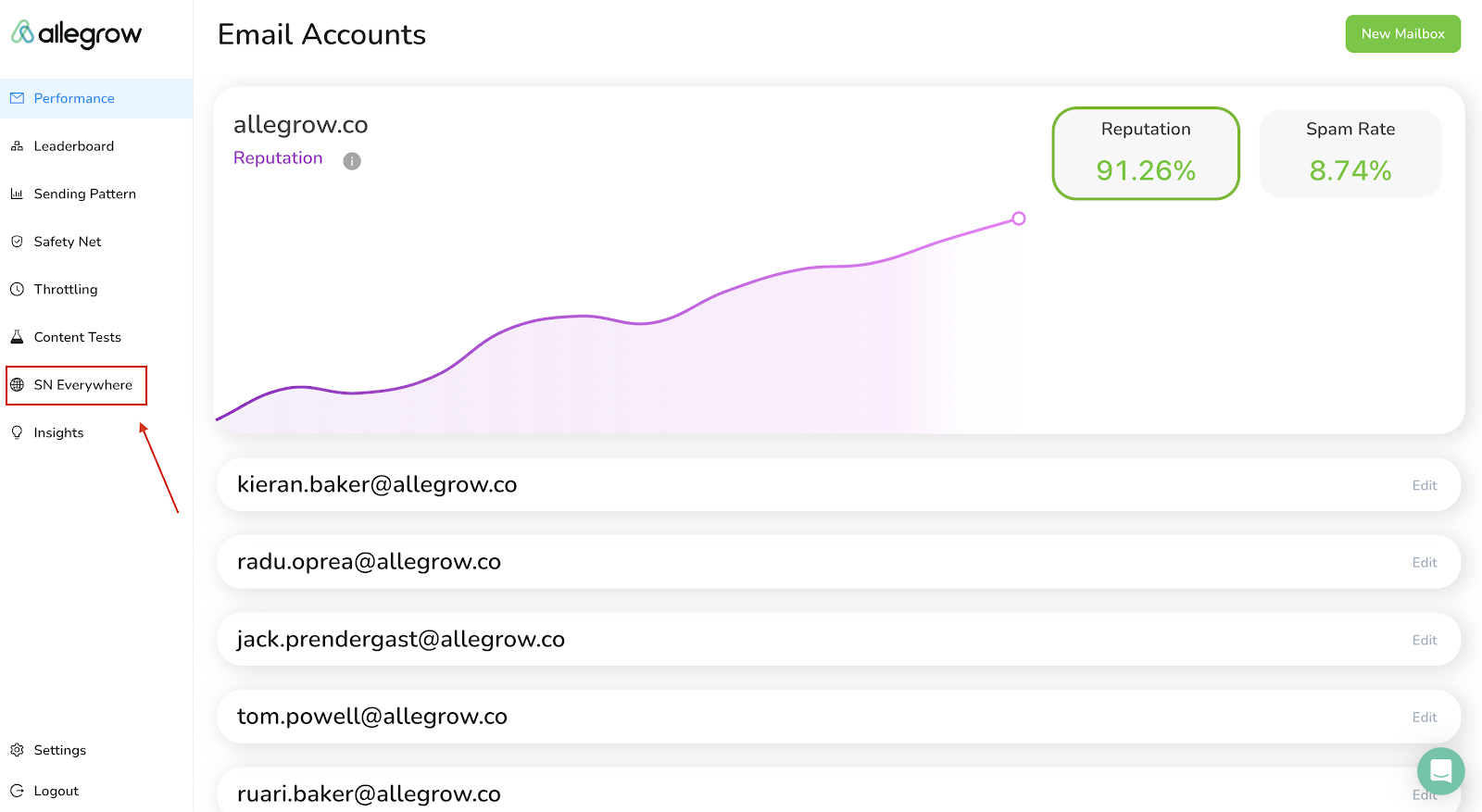
1) Use the navigation pane on the left side of your Allegrow Admin to reach the Safety Net Everywhere.
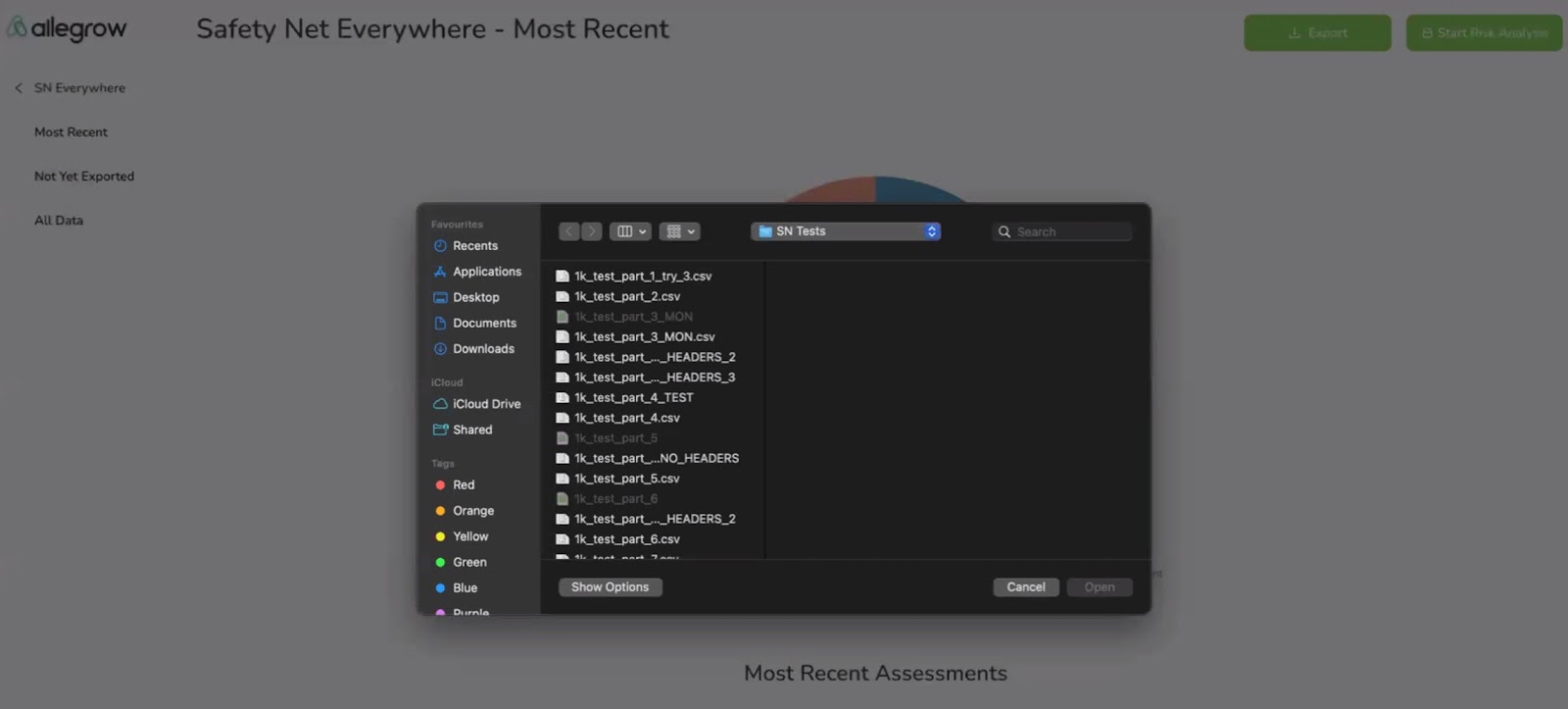
2) Select 'Start Risk Analysis' in the top right-hand corner of the screen.

3) In the selection window, select the file you need to run risk analysis on and select upload. You’ll want to upload data-sets which are higher risk, to improve engagement and reduce spam risk.
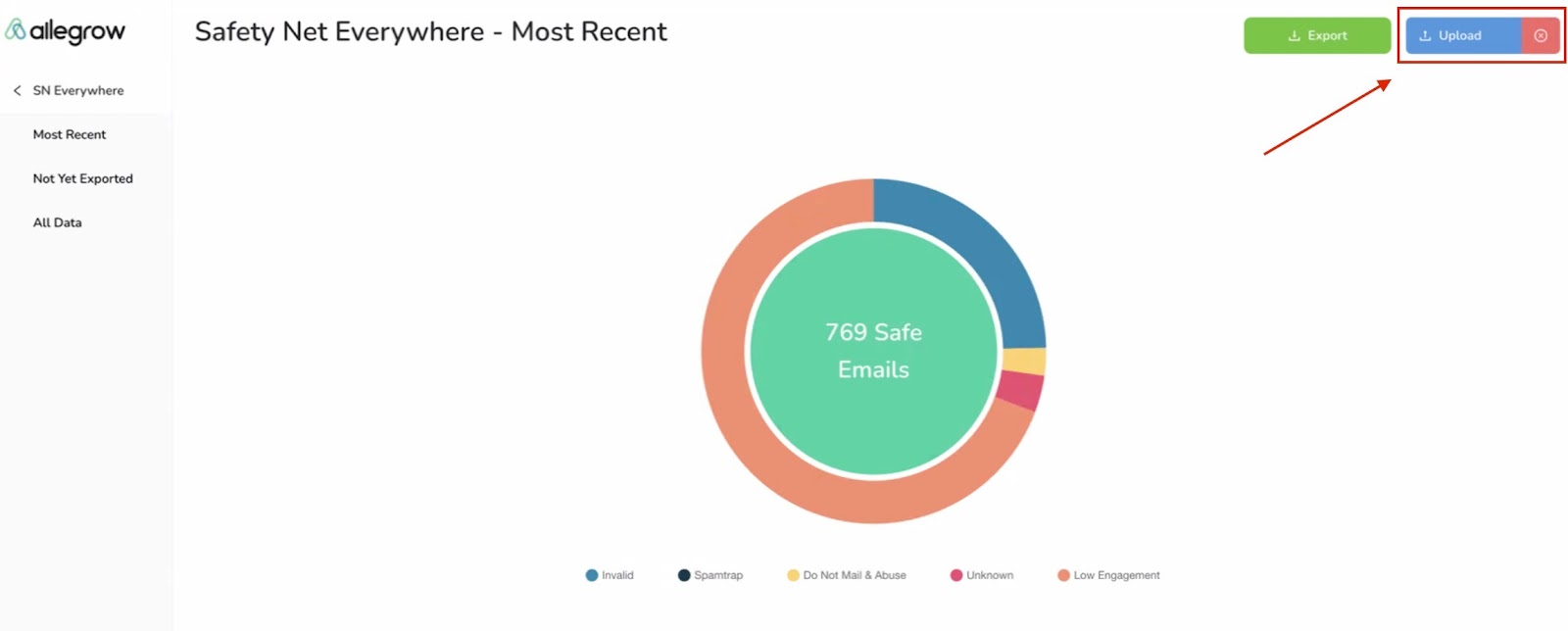
4) Then click the 'Upload' button and the Safety Net Everywhere begin running the relevant risk analysis, updating as a live feed in real-time you'll be able to see that progress as the status updates to 'Uploading' here (you should leave this page open as a tab while uploading progresses):
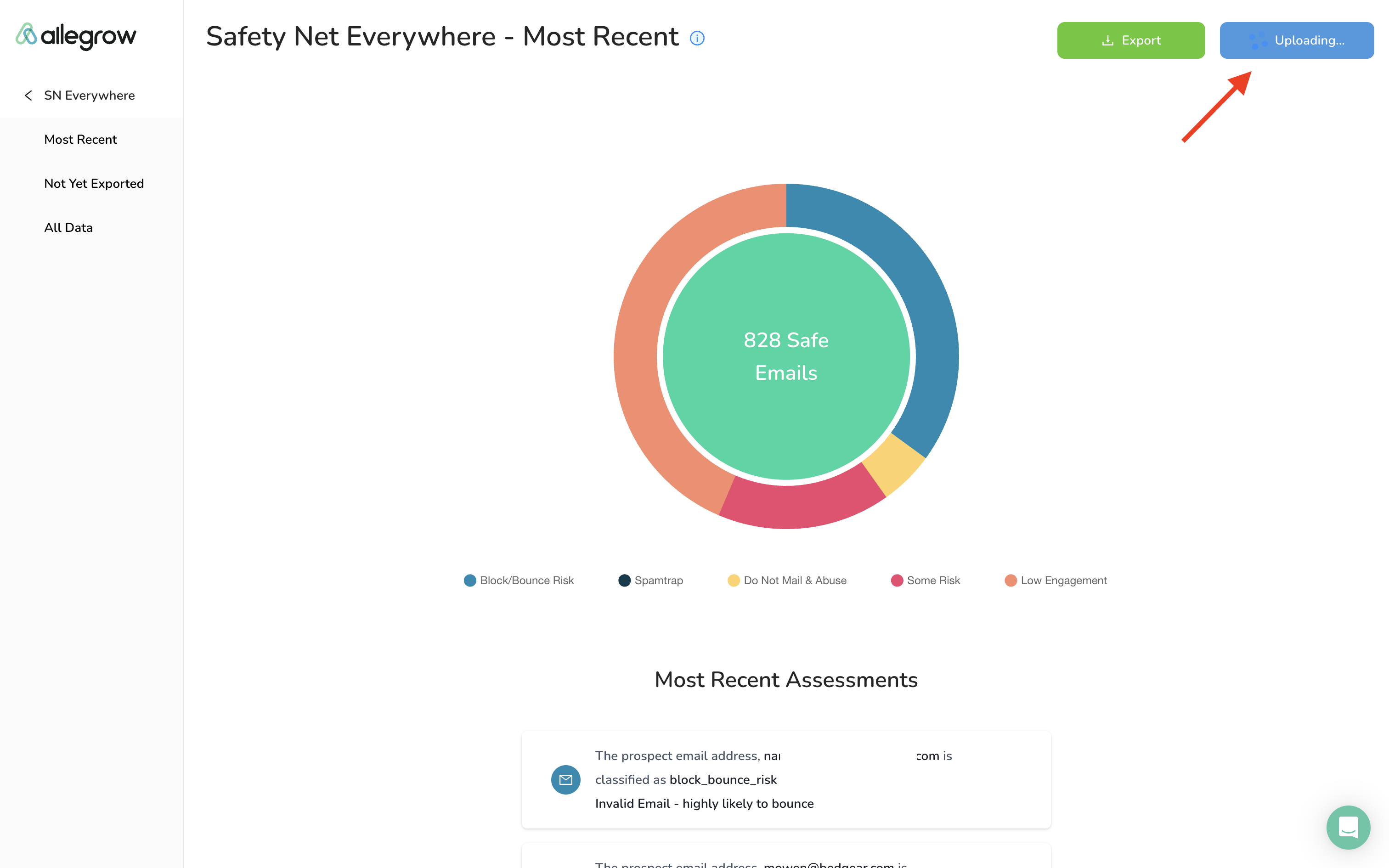
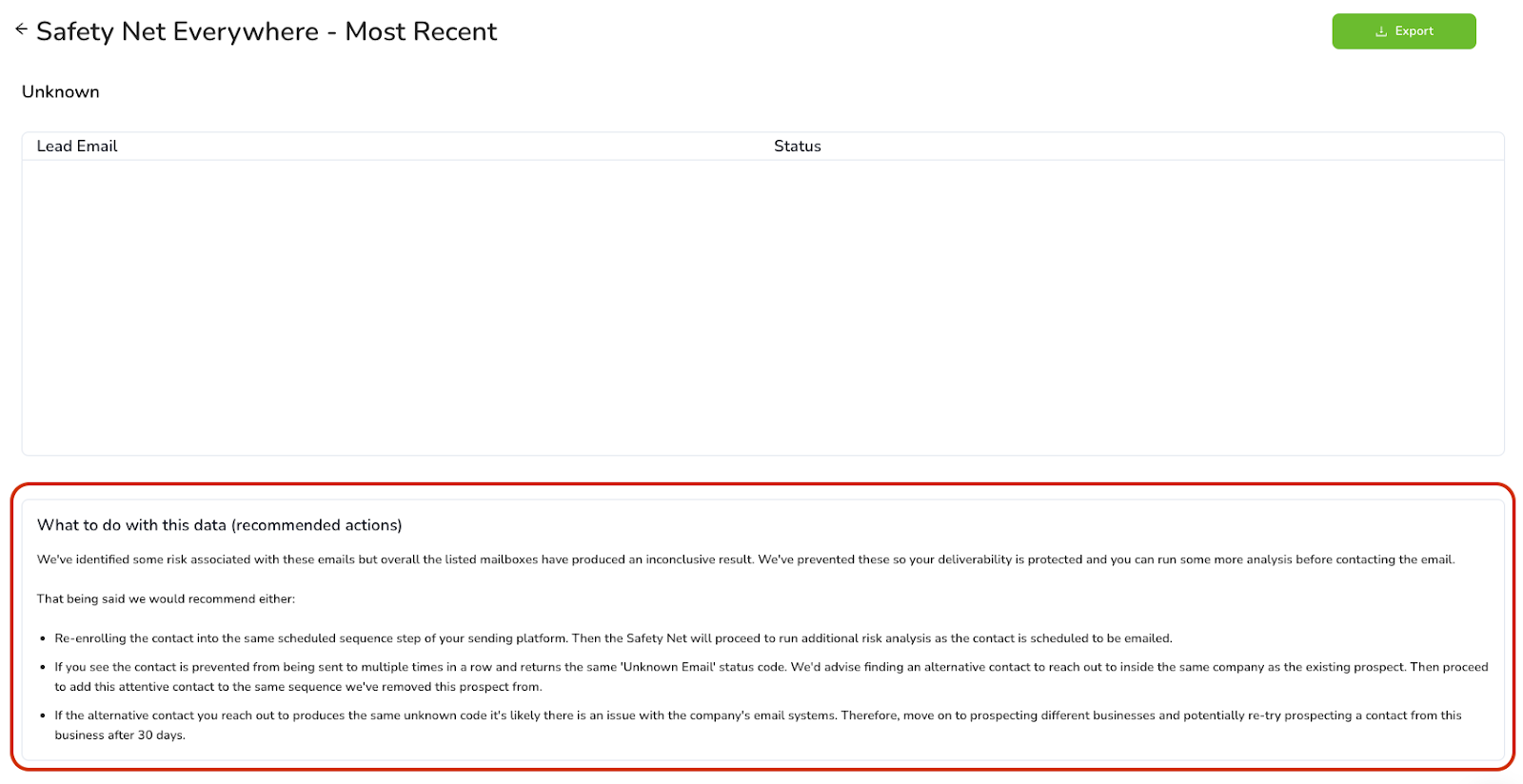
5) Once the risk analysis has been completed your results will be broken down into each prevention reason and will populate your home screen with a breakdown. Then when you dive into each segment, you’ll see guidance on how to action the data.

You’re welcome to review our help centre or contact our customer success team with any additional questions on using the Safety Net Everywhere.
Video Walkthrough
Curious to see a video walkthrough and explanation of how the Email Safety Net Everywhere works in Allegrow?
Our Co-Founder and CRO, Kieran Baker, explains below how to use the email Safety Net in Allegrow and shares an example of the analysis he’s received from the platform: